Financial Aid Forms
Every academic year you attend, you must submit a FAFSA application. The FAFSA application is usually available on October 1. The deadline to complete the FAFSA is June 30 of the current academic year (e.g. June 30, 2027, is the deadline to file a FAFSA for the 2026-2027 academic year).
Requirements and forms may change from year to year. Be sure to follow the process and use the specific form for the correct school year.
2026-2027 Financial Aid Forms (GTeForms)
Financial Aid forms for the 2026-2027 academic year are now available through GTeForms, our new electronic forms system, in your Student Center.
To access your required forms:
- Log into the Student Center using your MEID and password, and check the dropdown at the upper left to ensure you are on the Student Center Homepage.
- Click on My Student Forms
- Click on Financial Aid Forms to open the Financial Aid Forms page
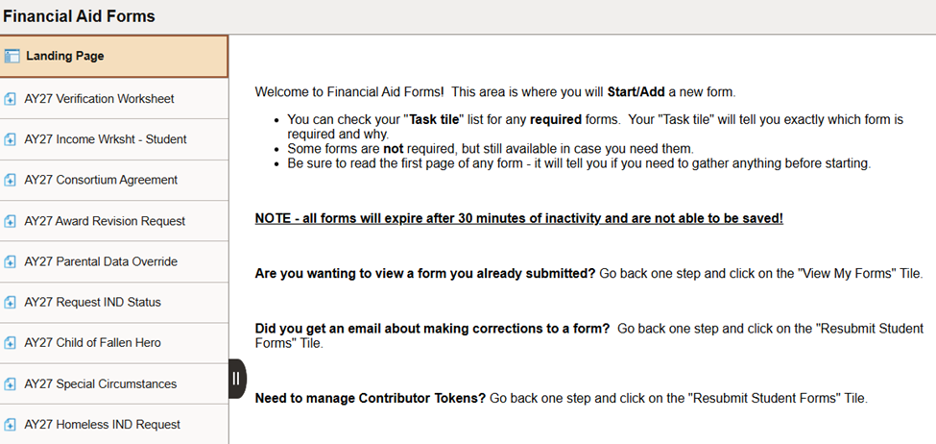
- From there, you will be able to view and complete any required Financial Aid forms directly through GTeForms.
Frequently Asked Questions
Check your Task List, as most forms require a Checklist Item in order to be initiated. To open the Task List, go to the Student Center main page, scroll down to the bottom row of tiles and select Tasks.
The Task List includes a column in which you can view the Status of each pending form. If a form has not yet been started, it will show a status of Initiated. Any status other than initiated indicates that you have begun the process of filling out that form. Additional form statuses are as follows:
- Returned: The form has been recycled back to you for corrections.
- To correct a returned form, go to Student Center > My Student Forms > Resubmit Student Forms.
- Notified: The Contributor has been notified, and the form is awaiting signature.
- Received: Staff has received the submitted form, and the form is awaiting evaluation.
You will receive an email at your Maricopa Student Email address with the subject line "Problem with Your eForm - Corrective Action Requested". This email is sent automatically when staff review of a student form reveals issues that must be resolved before the form can be accepted.
The email will note the specific form in question, and will provide you with the following steps to find and correct the form:
- Log into the Student Center.
- Click the My Student Forms Tile.
- Click the Resubmit Student Forms Tile.
- Click the Search button, you are NOT required to enter any parameters.
- You may enter the Form ID from above (Note: Shown in email) or just click Search.
- Make the needed changes, click Resubmit at the end.
If your Task List shows one of your forms as Returned, and you can't find this email in your inbox, go to Resubmit Student Forms, find the form in question, and make changes to the form as indicated. Details of the issues to be resolved should appear on the page on which you entered the majority of your information.
You are not able to return to the form for editing/updating once you have submitted it. If you feel you have submitted incorrect information or otherwise need to update anything, you can contact your college’s Financial Aid office to request that your form be recycled. Once the form has been recycled, you can then make changes and resubmit.
Yes. As a student, you must use your unique User Name/Password to log into the system, authenticating your identity. Only staff with the required security access will be able to view your information.
Maricopa Community College District is pleased to offer eSign. As a student your name is defaulted on the last page as it appears on your FAFSA. Just click Submit to sign.
Contributor Signature: If you require a Contributor signature, you will assign them a passphrase (which you will provide directly to them) as part of completing your portion of the form. Once you click Submit, they will be emailed a secure, unique link to log into the system, and will enter the passphrase to do so. The Contributor's signature is as easy as typing in their name and clicking Submit.
Documents: These are uploaded directly to a secure server, accessible only through authenticated security assignment.
Yes. As long as the Contributor has not yet signed it, you can generate a new Token link though the Resubmit tile (Student Center > My Student Forms > Resubmit Student Forms). When generating the new link, you can opt to change email address, passphrase, and Contributor name.
Once you click Submit after making updates, a new email will be generated to your Contributor.
Please note that only one Token link per form will be active at a time. If you generate a new link, any old links will no longer be valid and will not allow anyone access (even if they have the passphrase).
All links expire after 30 days.
If a document upload is required, the first column of the File Attachments table will indicate "Attachment Required" and will display a red status with an exclamation point.
- Click Upload.
- Select My Device.
- Browse for your desired file and click Open.
- Click Upload to attach.
- Select Done to return to the form.
Once you have successfully uploaded the document, the first column of the File Attachments table will indicate Attachment Uploaded and will display a green status with a check mark.
Once you have successfully uploaded the document, the first column of the File Attachments table will indicate Attachment Uploaded and will display a green status with a check mark.
If you need to add additional documents (e.g., you have a multi-page document such as a tax transcript) click the Add button to add an additional row. Now select Upload, and proceed with the attachment as outlined above.
NOTE: You will need to select a Description from the dropdown for each additional row prior to continuing the eForm.
If you need to replace a previously attached document, simply click the Replace button to the right of the document's filename. Then, browse for and upload the replacement document per the steps outlined above.
No, you are unable to save your partially completed Financial Aid forms for later completion. Please note that all forms will expire after 30 minutes of inactivity, after which you will need to start an incomplete form over again.
To ensure that you have all necessary documents and materials at hand, please be sure to refer to "Things to gather before starting" on the first page of each form.
Click the Submit button at the bottom of the last page of the form.
Once you have submitted your form, an on-screen message will appear outlining your next steps.
To monitor the status of your submitted forms, go to My Student Forms > View My Forms. Alternatively, you can check the Status column in your Task List.
In the unlikely event that you receive this error message, it will be because you have attempted to add multiple forms in the Add task without refreshing the entire screen after adding each form. If there is not another Maricopa college that requires this form from you, then you will see this error.
Click the Home button in the upper right-hand corner to return to your main Student Center, then navigate back to Student Forms > Financial Aid Forms to see if you have any other forms needing completion.